Notion Calendar to Watch10Pro — Reminder Notification Workaround
The buyer wanted Watch10Pro reminders 30 and 5 minutes before appointments, despite the watch having no app store for installing Notion.
Project overview.
Helping Calendar Reminders Reach a Smartwatch Without a Native Notion App
Digital calendars help people organize appointments, meetings, tasks and personal commitments.
But organizing an event is only useful when the person receives the reminder at the right time.
A calendar may display an upcoming appointment on a desktop computer, while the person responsible for attending it is away from their desk.
A phone notification can help.
A smartwatch notification can be even more convenient, especially when the wearer wants to check reminders without opening their phone.
However, not every smartwatch supports the same applications.
Some devices can install third-party apps directly.
Others depend on a connected smartphone to deliver notifications.
This difference can make calendar integration more complicated than it initially appears.
A customer may use Notion Calendar to organize their schedule but own a smartwatch without a compatible Notion application.
They might see WhatsApp or Instagram notifications on the watch while still being unable to receive their preferred calendar reminders.
That was the challenge behind a productivity automation project undertaken by Superb Digitals in October and November 2025.
The client wanted upcoming events from Notion Calendar to generate notifications on a smartwatch.
They were particularly interested in reminders 30 minutes and 5 minutes before each event.
Their actual device was a Watch10Pro, a smartwatch without an app store for installing Notion directly.
The proposed solution involved using a supported phone notification channel and allowing the smartwatch to mirror those notifications.
As development progressed, the technical approach expanded to include Google Calendar, Google Sheets, Google Apps Script, Make.com and Telegram.
The project required more than simply connecting two applications.
The client’s events had been created directly within Notion Calendar rather than stored as ordinary Notion database tasks.
That distinction affected which events could be accessed by the proposed integration.
The automation also needed to handle recurring appointments, reminder timing, time zones and the cost of frequent workflow execution.
Superb Digitals prepared custom Apps Script code, a Make.com blueprint and an instructional video.
The client participated in several rounds of configuration and troubleshooting.
After additional adjustments, the developer reported successful internal testing.
However, a later message revealed an unresolved issue with how Telegram delivered notifications to the client’s phone.
The client reported that messages only became visible after opening Telegram.
This meant the final smartwatch notification experience had not been conclusively verified.
This case study explains the actual development work, integration architecture, technical obstacles, client feedback and lessons from building calendar-based reminder workflows for wearable devices.
Client: Personal Productivity and Calendar Automation User
Client identity: Withheld for privacy
Industry: Personal Productivity, Scheduling and Workflow Automation
Initial discussion: August 8, 2025
Project formally commissioned: October 15, 2025
Calendar application: Notion Calendar
Calendar data source used in the revised approach: Google Calendar
Intermediate data layer: Google Sheets
Custom scripting: Google Apps Script
Automation platform: Make.com
Notification service: Telegram Bot
Destination device: Phone-connected Watch10Pro smartwatch
Requested reminder intervals: 30 minutes and 5 minutes before events
Additional requirement: Minimize recurring subscription and automation usage costs
Documented deliverables: Make.com blueprint, Apps Script instructions, video guidance, workflow troubleshooting and testing
Outstanding verification: Direct Notion Calendar event coverage and reliable immediate smartwatch push notifications
What needed to change.
Getting Notion Calendar Reminders on an Unsupported Smartwatch
The client used Notion Calendar to organize scheduled activities.
They wanted these activities to generate reminders on a smartwatch.
The desired result was simple from the user’s perspective.
An appointment appears in the calendar.
The automation identifies its start time.
Thirty minutes before the appointment, the user receives a reminder.
Five minutes before the appointment, another reminder appears.
The connected smartwatch displays the notifications.
This would make it easier for the client to remain aware of upcoming appointments without repeatedly checking their phone.
The Device Limitation
The client initially referred to a Xiaomi smartwatch.
However, after purchasing and testing their actual device, they identified it as a Watch10Pro.
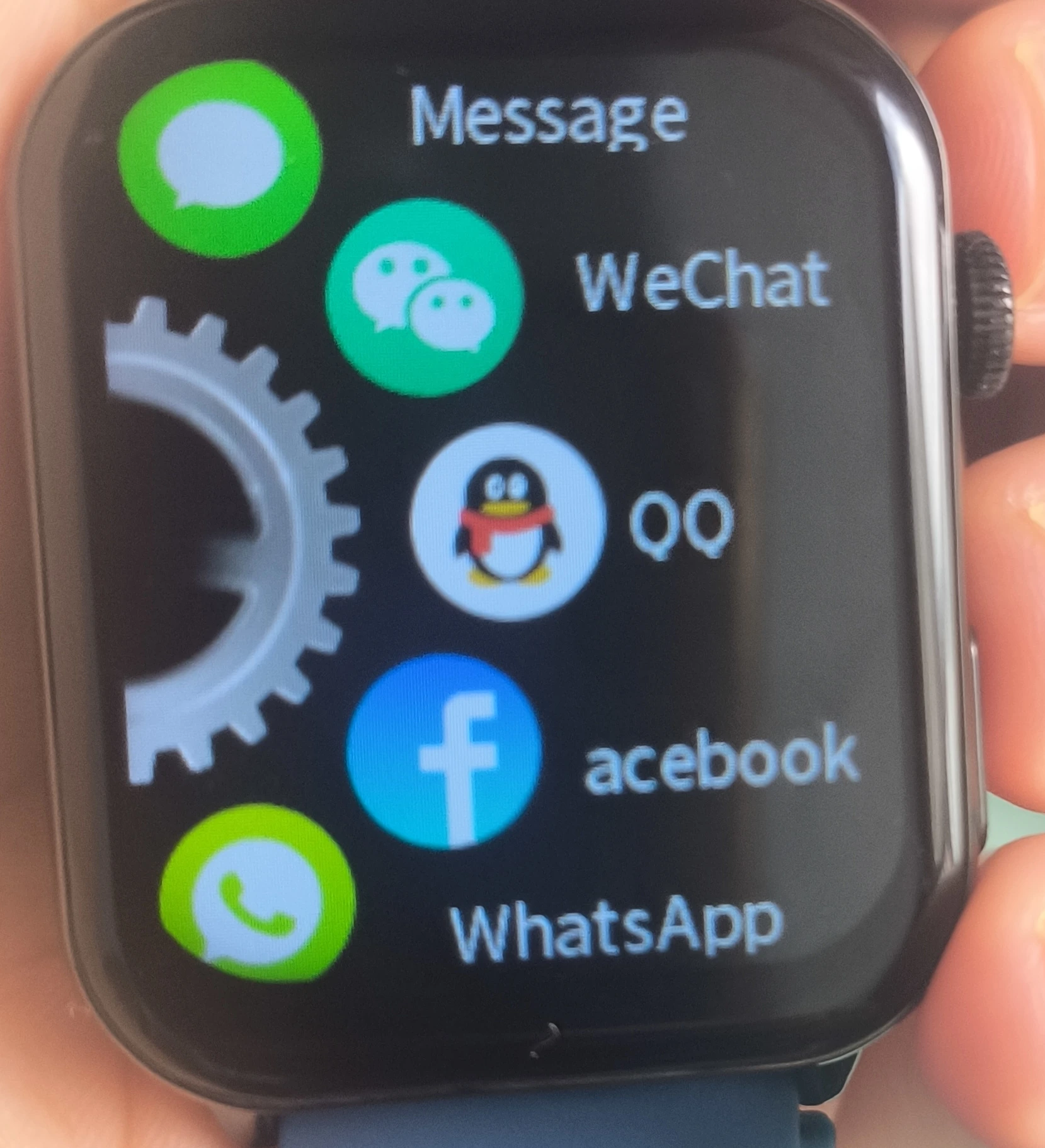
The watch did not provide an app store through which Notion could be installed.
It could display certain notifications from the connected phone.
For example, the client reported that WhatsApp and Instagram notifications could appear on the device.
The challenge was finding a supported method for calendar reminders to follow the same path.
Why Installing Notion Was Not the Solution
The watch’s functionality depended on the software available through its companion application.
A third-party app could not simply be installed as if the device were a fully compatible Wear OS smartwatch.
The implementation therefore needed to focus on delivering an approved notification to the phone and ensuring that the watch could mirror it.
This was the basis of the proposed workaround.
A connected solution.
Phase 1: Evaluating IFTTT and Make.com
The client first contacted Superb Digitals in August 2025.
They had read that IFTTT might help connect Notion-related reminders to their smartwatch.
They wanted to understand whether this approach was possible and how much it would cost.
The Original Preference
The client did not have paid subscriptions to Make.com or Notion.
They were interested in a low-cost solution.
IFTTT was therefore considered first.
Why IFTTT Was Relevant
IFTTT can connect supported application events to external actions.
However, the available triggers and actions depend on the services involved.
A calendar integration requiring custom timing or unsupported data access may need additional processing.
Why Make.com Became Part of the Plan
The final custom offer specified Make.com rather than a purely IFTTT-based configuration.
Make.com provided a way to coordinate calendar-related information with other services.
The workflow later expanded to include Google Sheets, Apps Script and Telegram.
Implementation, step by step.
Phase 2: Confirming the Actual Smartwatch Model
In October, the client returned after acquiring the smartwatch.
They wanted to proceed with the automation.
However, the device turned out to be more limited than a smartwatch running a full application ecosystem.
The Watch10Pro
The client identified the device as a Watch10Pro.
They explained that it could receive notifications from certain phone applications.
But it did not have a way to install Notion directly.
What This Changed
The integration could no longer be treated as a direct Notion-to-watch connection.
Instead, it would need to use a notification route supported by the paired phone and watch.
The Proposed Workaround
A calendar event would trigger an external notification.
A supported mobile application would receive that notification.
The smartwatch would mirror it if the device and companion app permitted.
Why This Was Reasonable
The watch already demonstrated the ability to display some phone notifications.
That made a mirrored-notification approach technically worth investigating.
What Still Needed Testing
Receiving notifications from one application does not prove that the watch will mirror notifications from every other application.
The final result depends on phone permissions, companion-app capabilities, background activity and the selected notification service.
That distinction became important later.
Phase 3: Defining the Reminder Timing
The client already used calendar reminders at specific intervals.
They wanted the smartwatch system to follow a similar pattern.
Thirty-Minute Reminder
The first alert should arrive 30 minutes before the event begins.
Five-Minute Reminder
The second alert should arrive five minutes before the event.
Example
For an appointment scheduled at 2:00 PM:
First requested reminder: 1:30 PM
Second requested reminder: 1:55 PM
Why Timing Was Important
The client wanted timely alerts, not simply a notification whenever a calendar event was created.
The workflow therefore needed to use the event’s scheduled start time.
The Technical Requirement
The system would have to determine when to send each reminder.
It also needed to account for events created well in advance and appointments that might be rescheduled.
Historical Evidence
However, the archived messages do not contain a complete set of timestamped delivery tests proving that both alerts consistently reached the smartwatch at those exact intervals.
They should therefore be presented as requested timing rather than independently verified final performance.
Phase 4: Respecting the Client’s Private Calendar Information
During the setup discussion, Superb Digitals requested access to the client’s Notion and automation accounts.
The client explained that their Notion workspace contained personal information.
They did not want to grant unrestricted access.
The Client’s Preference
The client wanted a live call or instructional video showing the steps they could perform themselves.
Why This Mattered
Personal calendars can contain private activities, appointments, locations and other sensitive information.
An automation consultant should not require access to the entire workspace if a more limited approach is suitable.
The Collaboration Method
The developer agreed to explain the setup through a call and later through instructional videos.
Why a Client-Controlled Setup Can Be Useful
The client can retain ownership of the account.
They can connect the authorized data sources themselves.
The developer can supply configuration instructions and a reusable workflow blueprint.
Practical Limitation
Some parts of an integration remain technical.
The client still needed assistance understanding how the automation components interacted.
This became part of the handover process.
Phase 5: Discovering the Difference Between Notion Calendar and Notion Database Events
One of the most important discoveries occurred during the October setup.
The developer initially discussed retrieving events from a Notion database.
However, the client clarified that their appointments were not stored there.
They had created events directly inside Notion Calendar.
Why This Was a Problem
Notion Calendar and Notion databases are related but distinct.
A Notion database can contain records with date properties.
Those records can be displayed in Notion Calendar.
However, this does not mean every event visible in Notion Calendar is also stored as a Notion database item.
The Client’s Actual Setup
The client explained that their Notion page did not show the appointments.
The events were visible in Notion Calendar itself.
Some were recurring events created manually.
Why the Original Data Source Assumption Was Incorrect
The developer had asked the client to share a Notion database page.
But the source information the client wanted to automate was not necessarily located in that database.
The Integration Challenge
A workflow that monitors Notion database records cannot automatically be assumed to detect calendar events stored in another connected calendar.
This changed the approach.
Important Lesson
Before choosing an automation trigger, identify where the underlying event actually lives.
The name of the application displaying the event is not always the same as the system storing the source record.
Phase 6: Investigating Google Calendar as the Event Source
The client used Notion Calendar alongside Google Calendar.
The developer proposed using Google Calendar events as the source for the reminder workflow.
Why Google Calendar Was Considered
Google Calendar offers supported ways to retrieve events.
Make.com also provides Google Calendar integration capabilities.
This created a possible path from calendar events into automated notifications.
The Proposed Approach
Google Calendar would provide event information.
The event information would be transferred to Google Sheets.
A subsequent automation would use the information to prepare reminders.
The Client’s Concern
The client explained that their manually created Notion Calendar events did not appear in an ordinary Notion database.
They also questioned whether the Google Calendar integration worked in the direction the developer expected.
Why This Was Important
A calendar application can display events from more than one connected source.
But events originating from one provider do not necessarily appear in another provider’s calendar.
Historical Limitation
The available project record does not conclusively establish that every appointment entered directly in Notion Calendar was available to the Google Calendar-based workflow.
Therefore, the final system should be described as using a Google Calendar-backed approach rather than a fully verified native Notion Calendar event integration.
Phase 7: Introducing Google Sheets as an Intermediate Data Layer
As the requirements evolved, Superb Digitals incorporated Google Sheets into the solution.
The spreadsheet would provide a structured place for event information used by the automation.
Why a Spreadsheet Was Helpful
An event record can contain several relevant fields.
These may include the event title, start time, time zone and a unique event identifier.
The automation can use those values to determine when notifications should be generated.
Separating Data Retrieval From Notifications
Using an intermediate sheet can separate the event retrieval process from the messaging process.
This allows the application to retrieve calendar information at one frequency while the notification logic processes the available records according to its own rules.
Why This Separation Matters
A calendar does not always need to be checked every few minutes if events are usually created well in advance.
However, once an upcoming event is known, the reminder process must handle its scheduled notification times accurately.
The Historical Approach
The developer reported using Google Sheets as part of the event-processing workflow.
The client later received instructions for installing a Google Apps Script connected to the spreadsheet.
What the Record Does Not Establish
The archived conversation does not contain the complete final Google Sheet schema or formulas.
It also does not verify the handling of every type of recurring, rescheduled or deleted event.
Phase 8: Developing Google Apps Script Code
On October 21, the developer reported working on a custom script to support the reminder process.
Later that day, they stated that the Google Sheets Apps Script code had been completed.
The Role of Google Apps Script
Apps Script allows developers to automate supported Google Workspace applications using JavaScript.
A script can retrieve information, process dates and update spreadsheet records.
It can also use authorized triggers to perform scheduled tasks.
Why Custom Code Was Considered
The developer believed that Make.com alone would not be the most suitable or efficient way to handle every part of the timing workflow.
Custom scripting was introduced to support the event-processing approach.
The Reported Deliverable
The developer prepared code intended to be installed inside Google Sheets.
They later supplied instructions explaining how the client could add the script to their own spreadsheet.
Why This Matters for E-E-A-T
The work moved beyond connecting preconfigured applets.
It involved a custom script and coordinating the script with an automation platform.
Verification Boundary
The correspondence confirms that Apps Script code was prepared and installation instructions were supplied.
The exact code is not preserved in the reviewable record.
Therefore, the case study should not invent functions, triggers, formulas or error-handling logic that cannot be independently inspected.
Phase 9: Preparing the Make.com Blueprint
The developer also prepared a Make.com scenario.

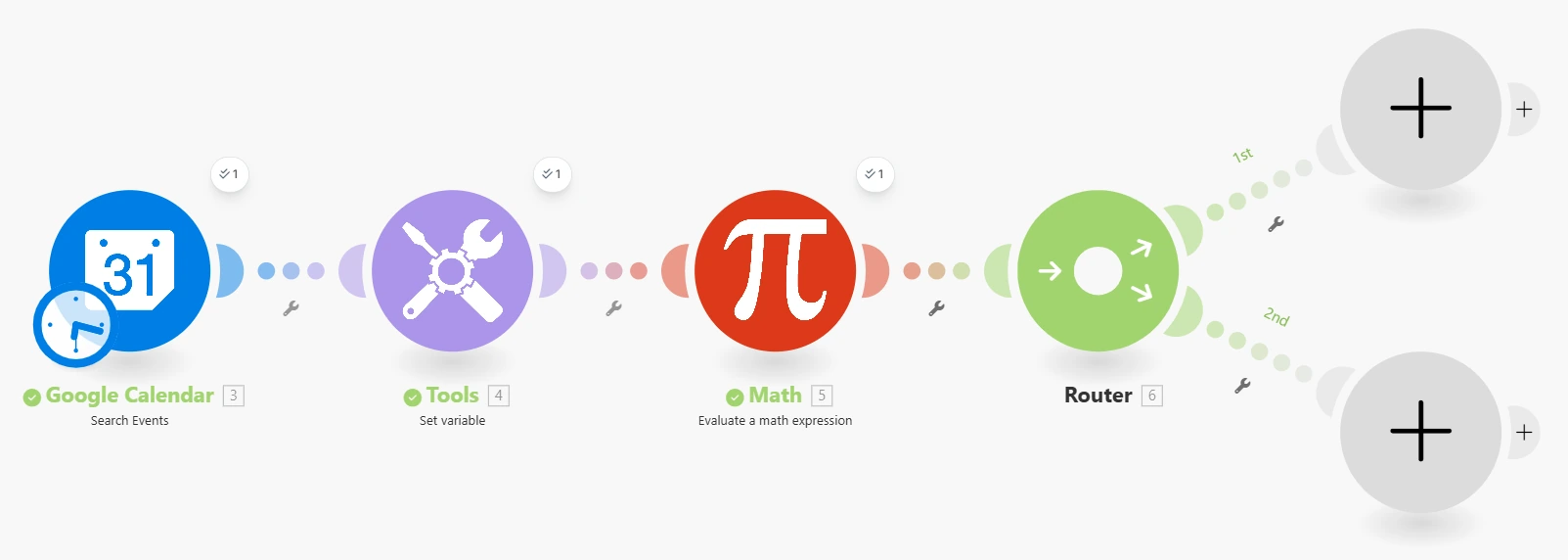
The automation combines calendar-event search, data preparation and routing. Destination branches are unconfigured. On October 24, the client received a blueprint file named Meeting Update.blueprint.json.
What Is a Make.com Blueprint?
A blueprint is an exported representation of a Make.com scenario.
It can be imported into another Make.com account to reproduce the configured workflow structure.
Why the Client Wanted a Blueprint
The client was concerned about sharing private account data.
They wanted to import the scenario into their own environment and connect the required services.
The Handover Package
The developer supplied:
Make.com blueprint
A scenario export to import into Make.com.
Google Apps Script instructions
Guidance for adding the custom script to Google Sheets.
Video guide
A recording explaining important setup steps.
Why This Was Significant
These were concrete technical deliverables recorded in the conversation.
The handover was more than a verbal promise.
What Still Needed Configuration
An imported scenario usually needs its own authorized connections.
The client must connect the relevant accounts and check the configuration.
A blueprint alone does not guarantee that the workflow will execute correctly in another account.
Phase 10: Providing an Instructional Video
The client repeatedly requested a video walkthrough.
They wanted to understand the setup without sharing unrestricted access to their private calendar.
The developer initially explained that video recording limitations could require several recordings.
On October 24, the developer supplied a video guide titled upcoming event alert guide.mp4.
Why Video Instructions Were Useful
A written integration guide may include several technical steps.
A video can show where the client should click, which settings to review and how the individual tools relate.
The Client’s Responsibilities
The client needed to install the script.
They also needed to import the Make.com blueprint and configure the necessary connections.
Client Progress
On October 28, the client reported completing the first two setup steps.
They then asked what to do next.
Why This Was an Important Milestone
The client was participating in the actual setup.
This supported the agreed approach of retaining control over personal information and connected accounts.
Phase 11: Troubleshooting the Telegram Notification Channel
Telegram became the selected messaging channel for reminder notifications.
The proposed workflow would generate messages that could appear on the client’s phone.
The smartwatch would then mirror the phone notifications where supported.
Why Telegram Was Considered
Telegram supports bot-based messaging through an API.
This makes it useful for sending structured notifications to an authorized user or chat.
The Bot Setup
The developer and client worked on configuring the relevant Telegram bot.
During November testing, an issue prevented the expected result.
Identifying the Problem
On November 18, the developer reported discovering that the new bot had not received an initial message.
This was relevant because a Telegram bot cannot simply initiate a private conversation with a user who has never started or contacted it.
The Required Action
The user needs to initiate the bot conversation or otherwise establish an appropriate permitted messaging context.
Why This Was Important
Even when the Make.com scenario is configured correctly, a bot may not be able to deliver a message if the intended destination has not been initialized appropriately.
Further Troubleshooting
Additional sessions took place during November.
The developer continued testing the notification flow.
The client later supplied further access to assist with configuration.
Phase 12: Coordinating Development Across Time Zones
The client retained control of private calendar and messaging accounts, so some configuration was performed through guided sessions. Time-zone handling was also important for accurate reminder scheduling.
Phase 13: Reported Successful Workflow Testing
By November 27, the developer reported that the workflow was functioning during their tests.
They suggested another call to explain the completed setup.
What Was Confirmed
The developer reported successful testing of the configured automation.
What Was Not Yet Fully Confirmed
There was no complete independent client test showing that both requested reminder intervals reliably reached the physical watch.
Why the Distinction Matters
A workflow can successfully generate a message through Telegram.
But the message must also reach the phone as a push notification.
Then the watch must mirror it.
Each stage has its own requirements.
The developer’s reported test therefore supported the automation layer without conclusively proving the entire wearable notification experience.
Phase 14: Optimizing Make.com Usage
The client was concerned about subscription costs.
During the November 29 discussion, the developer explained an adjustment intended to reduce Make.com usage.
The calendar retrieval interval had been changed from 15 minutes to one hour.
Why Polling Frequency Matters
An automation that checks for new events every 15 minutes runs more frequently than one that checks hourly.
Depending on the scenario, more frequent checks may increase the number of operations or credits consumed.
The Developer’s Explanation
The Google Calendar-to-Google Sheets update could take up to an hour to reflect a newly created event.
The reminder process was described as separate from that retrieval schedule.
The Client’s Scheduling Pattern
The client explained that appointments were generally created in advance.
This made a longer retrieval interval more acceptable for their use case.
The Ninety-Minute Consideration
The developer advised that newly created events should be scheduled at least approximately 90 minutes ahead under the current configuration.
That was intended to allow enough time for the hourly retrieval process and later reminder handling.
Why This Is Not a Universal Rule
The 90-minute recommendation reflected the historical design.
It should not be treated as a standard requirement for all Make.com calendar integrations.
The Cost-Performance Trade-Off
Less frequent polling can reduce processing activity.
However, it can also increase the delay between a source update and the intermediate data being refreshed.
The correct schedule depends on how far ahead users create events and how critical the reminders are.
Phase 15: Understanding the Difference Between Sync Timing and Reminder Timing
One of the developer’s explanations was that event synchronization and reminder delivery should be treated separately.
Calendar Synchronization
The system retrieves newly created or updated calendar records.
In the historical configuration, this stage was reported to run approximately once per hour.
Reminder Processing
The workflow uses the available event information to determine when notifications should be sent.
Why These Stages Must Coordinate
If a newly created event has not yet been retrieved, the reminder workflow cannot act on it.
For example, a new event created only 20 minutes before its start might be missed by an hourly retrieval process.
Why Existing Events Are Different
An event recorded several days in advance gives the system more time to retrieve and prepare the reminder information.
A Reliable Production Design
A robust reminder system needs to account for the maximum expected synchronization delay.
It should also handle events that are changed or cancelled after being retrieved.
Historical Limitation
The developer stated that notification triggers would operate independently of the hourly calendar update.
However, the archive does not include a timing audit confirming all edge cases.
That claimed separation should therefore be described as the intended configuration, not as guaranteed immediate delivery.
Phase 16: Delivery and Client Feedback
The workflow materials were handed over and the client provided positive feedback on the collaboration. Subsequent Telegram notification delays still required device-level troubleshooting.
Phase 17: The Post-Completion Telegram Notification Issue
Telegram notifications were not appearing immediately.
The client explained that they only became visible after opening the Telegram application.
Why This Was Significant
The purpose of the project was to receive timely reminders.
If a reminder only becomes visible when the user opens Telegram, it may not provide the desired benefit.
The smartwatch depends on the connected phone’s notification behaviour.
The Client’s Observations
The client suspected the problem might be related to Telegram’s behaviour, network conditions or their use of a VPN.
The Developer’s Response
Superb Digitals suggested reviewing Telegram’s notification settings.
What Was Not Established
The conversation does not include a final confirmed fix or independent successful phone-to-watch push test.
Why the Root Cause Remained Unclear
Delayed notifications may involve several possible factors.
These can include application notification permissions, background processing restrictions, device power settings, network availability or the phone-to-watch companion application’s configuration.
The client’s VPN was mentioned as a possibility.
However, the source messages do not establish it as the confirmed cause.
Correct Portfolio Outcome
The integration work was delivered and positively reviewed.
However, the final real-time notification experience was not fully verified.
A trustworthy case study should include both facts.
Phase 18: A Separate Follow-Up Notion Integration Order
A later, separate engagement explored mapping Notion data into a Make.com scenario using Google Sheets. This was a distinct workflow and is not evidence of reliable smartwatch alerts.
What We Delivered.
Verified Technical Contributions
Smartwatch Compatibility Assessment
The actual watch was identified as a Watch10Pro without direct Notion app installation capability.
Reminder Requirements Defined
The client specified 30-minute and 5-minute reminders for upcoming events.
Calendar Source Investigation
The project revealed the distinction between events created directly in Notion Calendar and entries stored in Notion databases.
Google Calendar Approach Evaluated
The workflow moved toward using Google Calendar data.
Google Sheets Data Layer Introduced
A spreadsheet was used as part of the revised event-handling approach.
Custom Apps Script Prepared
The developer reported completing script code.
Make.com Blueprint Supplied
The client received an importable scenario file.
Instructional Video Supplied
A video guide was shared to help the client configure the workflow.
Client Setup Progress Confirmed
The client reported completing the initial installation steps.
Telegram Bot Troubleshooting
The developer identified the need to initiate the bot conversation.
Further Workflow Testing
The developer reported successful testing on November 27.
Make.com Schedule Optimization
The calendar update frequency was adjusted to reduce recurring usage.
Implementation Delivered
The client accepted the delivered engagement.
Client Feedback
Post-Completion Limitation Identified
The client reported delayed Telegram notifications, with no documented final resolution.
Outcomes Not Independently Verified
The available records do not establish:
- Reliable access to every event created directly in Notion Calendar
- Automatic synchronization of all Notion Calendar-only events into Google Calendar
- Exact 30-minute and 5-minute alerts for every appointment
- Guaranteed immediate Telegram notification delivery
- Reliable notification mirroring to the Watch10Pro
- Successful handling of every recurring event
- Automatic updates for all rescheduled appointments
- Reliable cancellation handling
- A quantified reduction in missed appointments
- A documented increase in personal productivity
- A measured reduction in automation costs
- Continuous production operation
- A complete set of notification delivery logs
- Resolution of the delayed Telegram push-notification problem
- A native Notion application installed on the smartwatch
These should not be claimed without further evidence.
E-E-A-T: Experience From a Real Calendar and Wearable Integration
The project involved a real user with a specific smartwatch compatibility problem.
The client owned a Watch10Pro and used Notion Calendar for appointments.
They wanted precise reminders without repeatedly opening their phone.
The developer investigated the available software and device capabilities, provided configuration materials and participated in several rounds of testing.
The project also revealed genuine integration difficulties.
The source calendar was not a conventional Notion database.
The user wanted to limit access to personal information.
The automation required cost-conscious scheduling.
Telegram bot initialization needed attention.
And the final mobile push behaviour remained problematic.
These are real-world challenges that can arise in productivity automation projects.
E-E-A-T: Expertise in Multi-Step Workflow Design
The engagement involved several technical competencies.
Calendar Source Analysis
Distinguishing events stored in calendar providers from entries stored in a Notion database.
Google Apps Script
Preparing custom code to support spreadsheet-based automation.
Make.com Development
Building and exporting a scenario for use in the client’s account.
Google Sheets Integration
Using structured event information as an intermediate data source.
Telegram Bot Automation
Configuring an authorized messaging destination for notifications.
Scheduled Processing
Balancing polling frequency with the time sensitivity of reminders.
Device Compatibility
Understanding that some watches depend on phone notification mirroring.
Account Privacy
Supporting a client who preferred not to share unrestricted personal calendar access.
Workflow Troubleshooting
Investigating issues related to account connections and notification processing.
Client Handover
Providing a blueprint, instructions and video guidance.
These capabilities demonstrate relevant automation experience, while the outstanding push-notification issue limits claims about final system reliability.
E-E-A-T: Authoritativeness Through Completed Work and Verified Feedback
The client left five stars.
The developer supplied identifiable technical materials, including a Make.com blueprint and instructional video.
The client also returned for another engagement.
These are credible indicators of a real professional relationship.
However, positive service feedback should not be substituted for complete evidence of technical performance.
The distinction between customer satisfaction and verified end-to-end notification delivery remains important.
E-E-A-T: Trustworthiness Through Accurate Reporting
The client wanted reminders originating from Notion Calendar.
The implementation shifted toward Google Calendar as the source.
The client wanted smartwatch notifications.
The final recorded concern involved delayed Telegram push notifications.
These are meaningful distinctions.
A trustworthy portfolio should not present the project as a flawless direct Notion-to-watch integration.
Instead, it should explain that the work involved developing a workaround through supported automation services, preparing implementation materials and addressing several technical challenges.
It should also acknowledge that the final smartwatch experience was not independently confirmed as reliable.
Key Engineering Lessons
1. Identify the Actual Calendar Data Source
Events visible in Notion Calendar may originate from a connected calendar rather than a Notion database.
2. A Watch Without an App Store Can Still Display Notifications
But its functionality depends on the phone, companion application and available notification permissions.
3. Notification Mirroring Is a Separate Technical Stage
Successfully generating a Telegram message does not automatically prove that a smartwatch displays it.
4. Calendar Synchronization and Reminder Delivery Need Different Timing Rules
Polling and scheduled notifications should be coordinated carefully.
5. An Hourly Polling Interval Can Miss Short-Notice Events
The workflow should account for when users create or modify appointments.
6. Recurring Events Require Deliberate Handling
A repeating appointment can produce multiple occurrences that need suitable identification and scheduling.
7. Telegram Bots Need Proper Conversation Initialization
A bot must have an authorized destination before it can deliver private messages.
8. Privacy-Conscious Handover Is Valuable
An exported scenario and client-controlled credentials can reduce the need for unrestricted account access.
9. Automation Usage Should Be Estimated Before Scheduling Frequent Checks
The correct polling frequency depends on cost, available credits and the required responsiveness.
10. Time Zones Should Be Explicit
International scheduling can cause both communication mistakes and automation errors if time zones are handled inconsistently.
11. Changing an Event Should Update Its Pending Reminders
A reminder system needs a policy for rescheduled or cancelled appointments.
12. Notification Delivery Needs End-to-End Testing
The test should verify the calendar source, workflow execution, phone notification and smartwatch display.
13. Client Satisfaction and Technical Verification Are Different
14. A Follow-Up Order Is Not Proof of a Previous Fix
The client’s later Notion integration should be assessed on its own evidence.
15. Documentation Should Explain Both Setup and Limitations
A useful handover tells the client how to operate the workflow and which behaviours remain dependent on external applications.
Recommended Architecture for a Reliable Calendar-to-Smartwatch Reminder System
The following is a recommended modern design informed by the historical engagement.
It is not an exact reconstruction of the delivered Make.com blueprint.
Step 1: Identify the Source Calendar
Determine whether the relevant event belongs to Google Calendar, another connected calendar or a Notion database.
Step 2: Establish Authorized Access
Connect only the calendar or data source needed for the automation.
Step 3: Retrieve Upcoming Events
Use the appropriate supported API or automation trigger.
Step 4: Preserve Event Identifiers
Store stable references to the original events and individual occurrences.
Step 5: Normalize Dates and Time Zones
Convert event times into a consistent internal representation while preserving the intended local time.
Step 6: Calculate Reminder Times
For every eligible event, calculate the requested reminder timestamps.
Step 7: Record Reminder State
Track whether a particular reminder has already been sent.
Step 8: Handle Recurring Events
Recognize the relevant occurrence rather than treating every recurring series as one event.
Step 9: Handle Changes and Cancellations
Update or remove reminders when the original event changes.
Step 10: Configure the Telegram Bot
Ensure the user has initiated the bot conversation and that the correct chat is authorized.
Step 11: Send the Reminder
Generate an appropriate message when the reminder becomes due.
Step 12: Record the API Response
Track the available message submission information.
Step 13: Verify Phone Notifications
Confirm that Telegram displays notifications without requiring the app to be opened.
Step 14: Verify Smartwatch Mirroring
Check that the watch receives the corresponding notifications through the companion app.
Step 15: Test Different Timing Scenarios
Include appointments scheduled several days ahead, short-notice events and recurring meetings.
Step 16: Monitor Workflow Usage
Review API calls and Make.com usage against the expected workload.
Step 17: Provide a Privacy-Conscious Handover
Document how to manage the authorized connections, notification settings and workflow schedule.
This design would address several limitations encountered in the original engagement.
Similar Applications for Other Users and Businesses
The same integration principles can support other productivity and operational workflows.
A consultant could receive reminders before scheduled client calls.
A project manager might want notifications before important deadlines.
A service professional could receive appointment reminders through a supported messaging application.
A team member might need task notifications displayed on a connected wearable.
An administrator could receive alerts from an approved business calendar.
A business may also want reminders delivered through email, SMS or another supported channel.
Each implementation requires appropriate data access, notification timing and destination testing.
However, the main principle remains the same:
Identify the correct event source, process the timing rules and deliver the notification through a channel the recipient can actually use.
Project visuals.
No client-approved project screenshots are published for this case study. The implementation and documented limitations are explained in the sections above.
Smartwatch Reminder FAQs.
Can Notion Calendar send reminders to a smartwatch?
A connected smartwatch may display suitable phone notifications, but the result depends on the watch, companion application and calendar or messaging setup.
Are Notion Calendar events the same as Notion database items?
No. Notion Calendar can display events from connected calendar providers alongside dated Notion database items.
Can a calendar workflow send reminders 30 minutes before an event?
Yes. A suitable system can calculate the reminder time and submit a notification according to its scheduling rules.
Why do Telegram messages only appear when I open the app?
Possible causes include notification permissions, background restrictions, power management or network connectivity. The actual cause requires device-specific investigation.
Does sending a Telegram message guarantee a smartwatch alert?
No. Message delivery, mobile push notification and smartwatch mirroring are separate stages.
Is hourly checking suitable for every reminder workflow?
No. It depends on how far ahead events are created and how quickly newly added appointments must become available.
Can recurring events be handled automatically?
Yes, but the integration should identify individual occurrences and account for changes or cancellations.
Can a reminder workflow work across time zones?
Yes. The implementation should consistently handle event and user time zones.
Can Superb Digitals develop custom calendar reminder integrations?
Yes. Superb Digitals works on Make.com workflows, Google Apps Script, API integrations, scheduled notifications and automation troubleshooting.
Need Calendar, Task or Appointment Automation?
Your calendar, task platform and notification applications do not always work together automatically.
A suitable integration can help connect approved events to the communication channels you use.
At Superb Digitals, we help businesses and individuals plan, build and troubleshoot custom workflows.
Our services include:
- Notion integration
- Google Calendar automation
- Google Sheets and Apps Script development
- Make.com workflows
- Telegram Bot notifications
- Appointment and task reminders
- Workflow scheduling
- API and webhook integrations
- Smartwatch notification workflow consulting
- Data synchronization
- Automation cost optimization
- Workflow troubleshooting
- Custom productivity systems
Whether you need a calendar reminder workflow, business notification process or help connecting existing applications, we can assess the requirements and develop a suitable integration.
Let’s discuss your automation project.
Visit https://superbdigitals.com/ to explore our services.
Superb Digitals — Web Development, CRM & AI Automation Solutions.
Need calendar reminders across different devices?
Tell us about your project and discuss the next steps with Superb Digitals.
Related client work.
 AI Automation
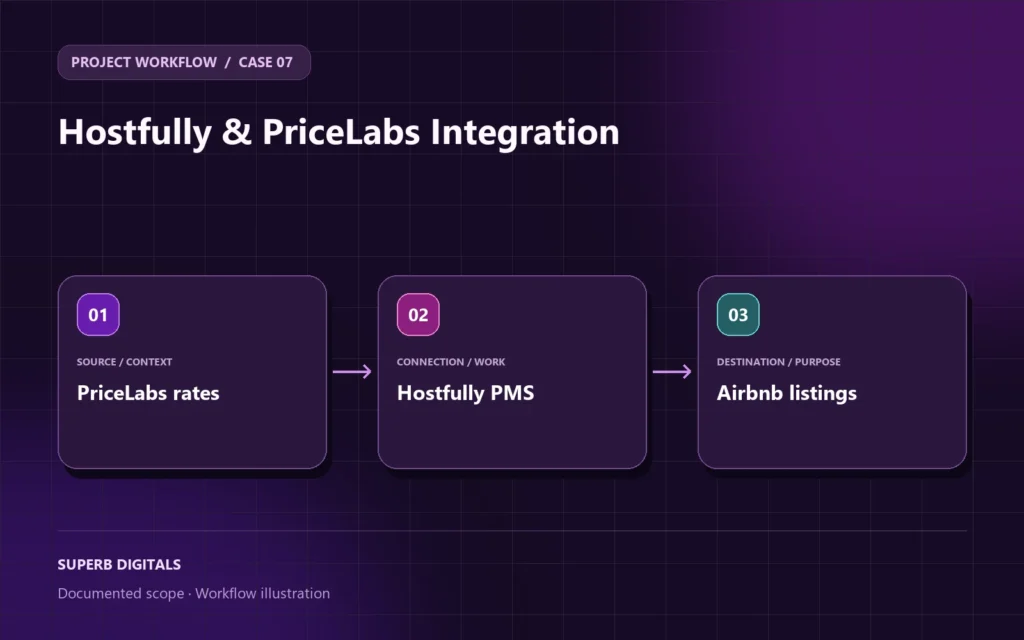
Hostfully & PriceLabs Integration
Two rental listings with different booking windows, connected pricing and practical stay-rule troubleshooting.
 AI Automation
24/7 Weather Monitoring & Smart Alert Automation
A six-phase weather automation project using Tempest, WeatherLink, IFTTT, Make.com and Apps Script for rain and storm alerts.
 AI Automation
Leonidas Labs — AI-Powered Quiz & Automated Report Generation
An AI-powered quiz funnel connecting Jotform, Make.com, OpenAI, Brevo, Stripe and Google Docs for personalized reports.