

Google Sheets to WordPress Dynamic Content Automation
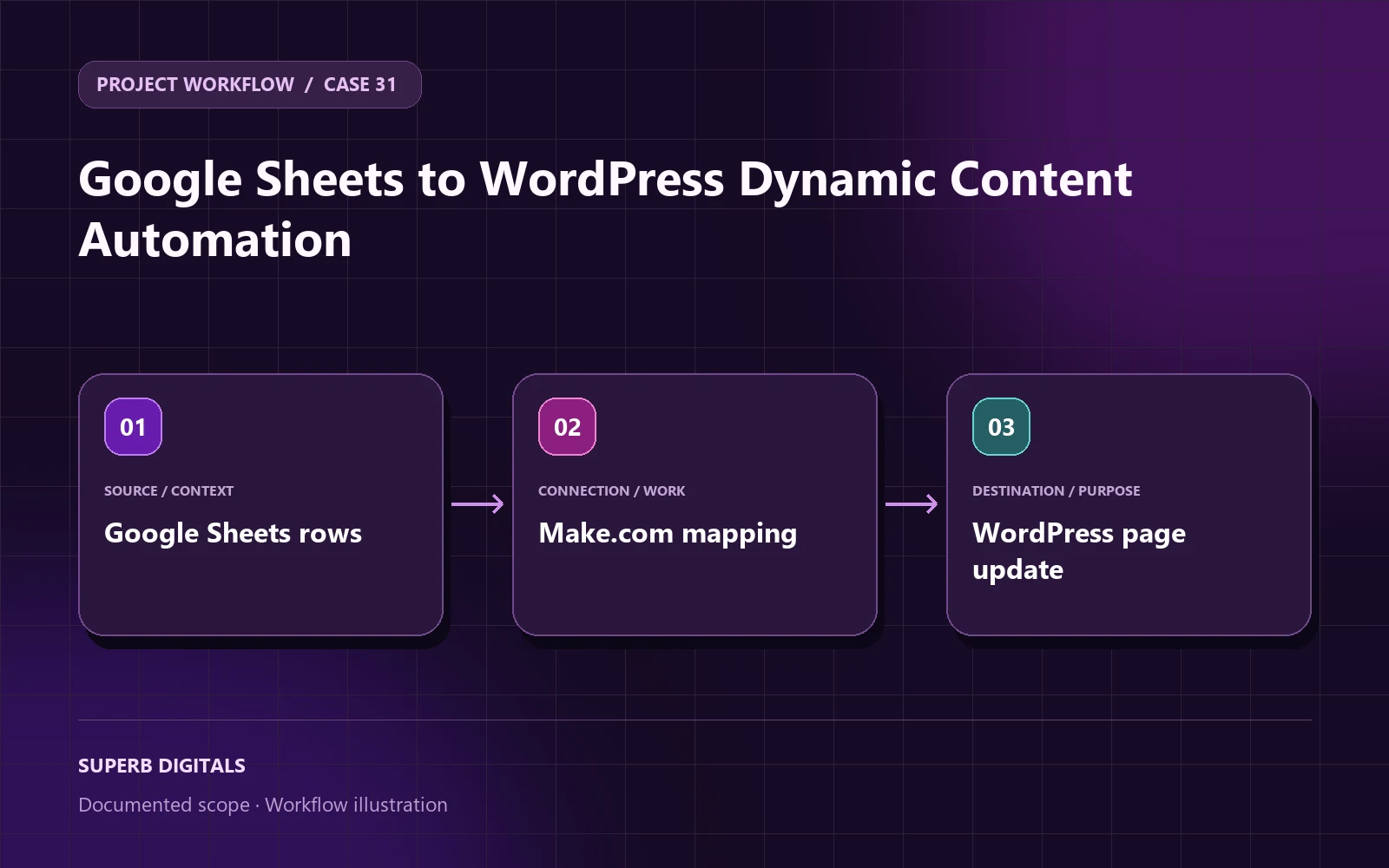
A Google Sheets-to-WordPress dynamic page update engagement for a digital trends content project, using Make.com and WordPress.
Project overview.
Turning Spreadsheet Data Into an Automatically Updated WordPress Page
Many businesses use spreadsheets to organize information.
A marketing team might use Google Sheets to track campaign performance.
A publisher might maintain a list of trending topics.
A research organization could use a spreadsheet to organize frequently changing statistics.
But what happens when that information also needs to appear on a public website?
Without automation, someone must repeatedly copy the data, open the website editor, update the content and publish the changes.
That process can become repetitive, especially when new information is added throughout the day.
A better approach is to connect the data source directly to the website.
That was the objective behind a WordPress automation project completed by Superb Digitals.
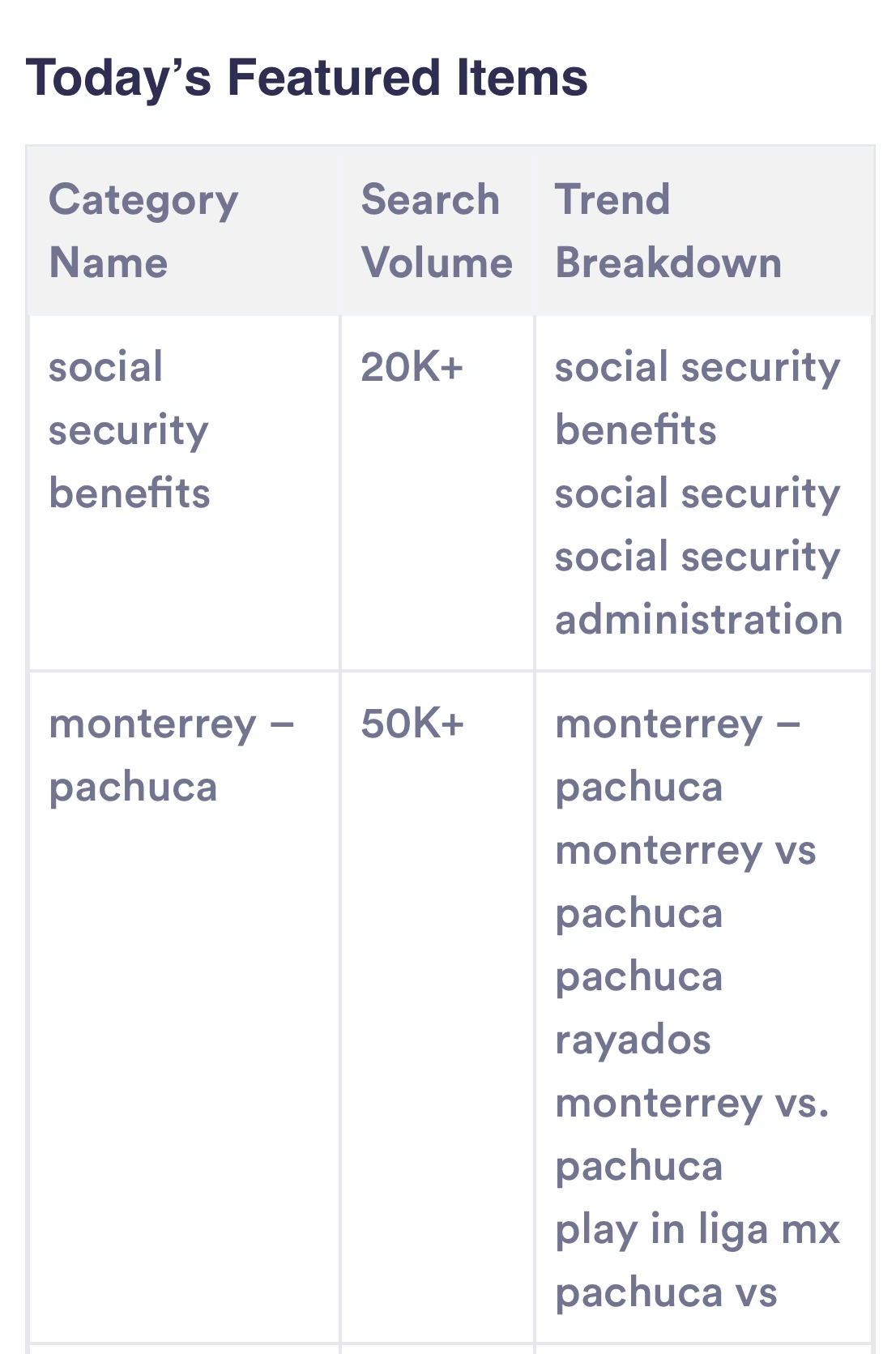
The client wanted to manage trending-topic information inside Google Sheets and display the records automatically on a WordPress page.
The spreadsheet included information such as topic names, search-interest figures, trend statuses and supporting trend breakdowns.
The intended webpage needed to show multiple records together in an organized layout.
Whenever the spreadsheet was updated, the website should reflect the relevant information without requiring the client to manually rebuild the page.
Superb Digitals was engaged to connect Google Sheets and WordPress through Make.com.
Although the original request was described as spreadsheet-to-blog automation, the client’s requirements evolved into a more specific solution: a single dynamic WordPress page containing a table of recent trending topics.
The implementation required data mapping, row processing, page updates, content formatting and several rounds of troubleshooting.
One particularly important challenge involved the way Elementor and the standard WordPress editor handled the page content.
This case study explains the actual development process, the problems encountered and the lessons from creating a spreadsheet-driven website publishing workflow.
Client: Digital Trends and Content Publishing Project
Industry: Digital Media, Online Publishing and Marketing Research
Project period: April–May 2025
Project type: WordPress Content Automation
Data source: Google Sheets
Automation platform: Make.com
Website platform: WordPress
Additional website editor: Elementor
Additional technologies discussed: WordPress Advanced Custom Fields (ACF) and OpenAI API
Primary output: Dynamic trending-topics webpage
Content format: Multi-row tabular content
Final requested display size: 15 rows
Update behaviour: Scheduled spreadsheet-to-website synchronization
What needed to change.
Keeping a Trending Topics Page Updated Without Manual Editing
The client wanted a WordPress page displaying a collection of trending topics.
The data would originate in Google Sheets.
New information could be added by the client or their team.
The website then needed to display the appropriate records.
The original examples involved topics from different areas, including financial news and major sporting events.
The spreadsheet could contain details such as:
- Topic name
- Search-interest figure
- Trend status
- Trend breakdown
The client wanted these details visible on the website.
The objective was not simply to import a spreadsheet once.
The website needed to remain connected to the changing source information.
Why Manual Updates Were Inefficient
If the business entered ten new topics into Google Sheets, a manual process would require someone to transfer the information into WordPress.
Each topic would need to be formatted consistently.
The page would also need to remain readable as more information accumulated.
For a page designed to reflect current topics, this created an unnecessary operational burden.
The proposed solution was to let the spreadsheet serve as the primary place for maintaining the data.
Make.com would then handle the transfer to WordPress.
A connected solution.
Phase 1: Reviewing the Existing Make.com and WordPress Setup
The client initially contacted Superb Digitals because an API call from Make.com to WordPress was not working as expected.
They already had accounts and some integration work in place.
The first step was understanding the desired data flow and the existing technical configuration.
Clarifying the Source
The client wanted to use Google Sheets.
Each spreadsheet row represented information about a trending topic.
The workflow would need access to the relevant columns.
Clarifying the Destination
The destination was a WordPress website.
However, there was an important question: should every new spreadsheet row create a separate post, or should all rows appear together?
The distinction was not fully resolved during the earliest discussions.
This later became the central source of the first implementation problem.
Reviewing the Content Structure
We requested examples of the expected output.
The client supplied spreadsheet information and screenshots illustrating how the content should appear.
These references helped establish the required relationship between the source columns and the WordPress output.
Implementation, step by step.
Phase 2: Understanding the Difference Between Individual Posts and a Shared Data Page
However, the client subsequently clarified that they wanted multiple records displayed within the same webpage.
This created two possible publishing models.
Model A: One Row Creates One Post
In this approach, each new spreadsheet row creates a separate WordPress post.
For example, a row about a financial trend might become one article.
A row about a sports topic might become another.
This approach can be appropriate when every row represents independent content intended to have its own URL.
Model B: Multiple Rows Update One Page
In this approach, the spreadsheet acts as a collection of records.
The automation retrieves the relevant rows and displays them together.
For example, one public page could show the most recent trending topics in a table.
The client wanted the second approach.
Why This Changed the Requirements
Creating separate posts and updating one page involve different workflow logic.
A post-creation process can respond to each new record independently.
A shared-page process needs to determine which records should be displayed together and how the existing page content should be updated.
This became clear during the first client tests.
Phase 3: Creating the Initial Google Sheets-to-WordPress Automation
We connected the spreadsheet data to the website through Make.com.
The initial implementation used the available spreadsheet information to populate WordPress content.
The developer reported completing an early version on April 26, 2025.
The client was asked to review it.
Scheduled Processing
During development, we initially described the automation as checking for new spreadsheet information approximately every 15 minutes.
Later, during troubleshooting, we discussed an interval of approximately 30 minutes associated with the available account configuration.
The exact interval was therefore dependent on the setup and platform limits being used.
Why Scheduled Processing Was Suitable
The page did not necessarily require a new request every second.
It needed to reflect newly entered information at a practical frequency.
A scheduled workflow provided one possible approach.
The Importance of Clear Timing Expectations
A spreadsheet update may not appear on the website immediately.
The client needed to understand that the automation was scheduled rather than guaranteed to run instantly after every edit.
This distinction helped explain some of the observations during testing.
Phase 4: Discovering the Single-Row Processing Problem
On April 27, the client performed an important test.
They added four new rows to the spreadsheet.
However, the WordPress output showed only the last row.
This did not match the business requirement.
The client wanted all four records represented.
The Client’s Expected Result
Suppose the spreadsheet contains four new entries.
Row 1: Topic A
Row 2: Topic B
Row 3: Topic C
Row 4: Topic D
The webpage should display all four entries together.
Instead, the observed output reflected only one of the recently added records.
Why This Happened
The existing workflow was handling the content in a way that did not preserve the complete group of desired rows.
The result was not suitable for the intended page.
This required a change in how the records were collected and represented.
An Important Technical Distinction
The problem should not be interpreted as a universal Google Sheets API limitation.
Google Sheets can expose multiple rows through supported operations.
The issue was the selected automation approach and the handling of those rows within the specific workflow.
That distinction is important when diagnosing similar problems.
What We Delivered.
Verified Project Outcomes
Completed Google Sheets-to-WordPress Automation Engagement
Spreadsheet-Driven Website Content
The workflow was developed around using Google Sheets as the source for WordPress content updates.
Multi-Row Display Requirements Addressed
The implementation evolved from individual-row output toward displaying multiple records together.
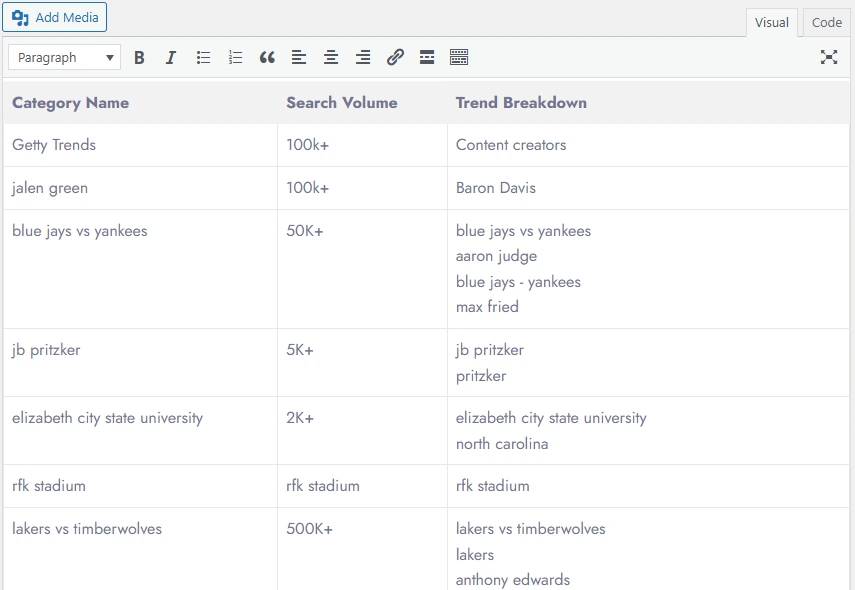
Tabular WordPress Page
The client selected a table-style presentation on a dedicated webpage.
Client-Observed Functionality
On April 29, the client reported that the page appeared to be working properly.
Display Limit Refinements
The developer reported adjustments to the maximum number of visible records, ultimately increasing it to 15.
Elementor Conflict Investigation
The project identified that the client’s use of Elementor was interfering with updates managed through the other WordPress editing process.
Page Title and URL Changes
The developer reported changes to the requested page title and later permalink.
Client Feedback
Continued Client Relationship
The customer later discussed and commissioned further website automation work.
Outcomes Not Independently Verified
The available records do not establish:
- A guaranteed update interval for every spreadsheet change
- A permanent elimination of all Elementor conflicts
- A complete audit of the final Make.com scenario
- Consistent delivery of every spreadsheet row without errors
- Verified reverse chronological ordering in every subsequent run
- A continuously correct 15-row limit after future updates
- A specific caching problem being fixed
- A confirmed OpenAI-based sorting implementation
- A completed Advanced Custom Fields integration
- Automatic creation of a separate WordPress article for every row
- Improved Google Search rankings
- Increased organic traffic
- A specific increase in reader engagement
- Measured administrative time savings
- A documented percentage reduction in publishing errors
- Long-term production uptime
These outcomes would require further technical testing, platform logs or analytics.
Experience: Building a Real Spreadsheet-Driven Website Workflow
This project involved a live WordPress website, a changing Google Sheets data source and an actual publishing requirement.
The client submitted test records and checked whether the output appeared correctly.
Several technical problems emerged during that process.
These included incomplete row processing, content aggregation, page-editor conflicts and frontend display differences.
The engagement therefore demonstrates practical experience with the complexities of automating website content.
Expertise: Data Mapping, WordPress and Make.com
The technical work involved several important capabilities.
Google Sheets Integration
Connecting structured spreadsheet information to an automation platform.
Make.com Workflow Development
Configuring scenarios that process and transfer data between applications.
WordPress Content Updates
Working with the website’s content structure and destination page.
Multi-Record Processing
Understanding why a workflow designed around one row may not satisfy a requirement to display multiple rows together.
Dynamic Table Presentation
Organizing repeated data fields into a usable webpage.
Page Builder Compatibility
Diagnosing conflicts between automated WordPress content updates and Elementor editing.
Scheduled Processing
Managing expectations around polling intervals and delayed updates.
Workflow Troubleshooting
Investigating client-reported problems and refining the configuration.
Publishing Architecture
Considering how data sources and website presentation should remain separated.
These capabilities are relevant to other website integrations and business data synchronization projects.
Authoritativeness: Verified Client Satisfaction and Repeat Engagement
The same client subsequently discussed and commissioned additional work.
These records provide evidence of professional engagement and buyer satisfaction.
However, they do not support claims about traffic growth, SEO improvements or measurable commercial outcomes.
The strongest authority signals remain the original project evidence and the verified client review.
Trustworthiness: Transparent Reporting of Challenges
The initial implementation did not satisfy the complete multi-row requirement.
The client identified that only one record appeared after several new rows were added.
The workflow was revised.
The client then encountered additional problems involving Elementor and page updates.
These issues required further troubleshooting.
The client eventually accepted the project and left positive feedback.
This case study presents those events accurately.
It distinguishes client-observed functionality from developer-reported changes and does not invent performance metrics.
Important Technical Lessons
1. Define the Destination Content Model Before Building
Creating separate posts is different from updating one shared webpage.
The requirements should state which behaviour is expected.
2. One New Row Does Not Necessarily Mean One New Article
An automation can process a new row as part of a larger collection rather than creating separate content.
3. Multi-Row Publishing Requires Data Aggregation
When several records belong on the same page, they need to be assembled in the intended format.
4. Scheduled Automations Need Clear Timing Expectations
Polling-based updates may not appear immediately.
5. Page Builders and External Updates Can Conflict
The content-management approach must account for how the destination editor stores and renders information.
6. Display Limits Improve Usability
A continuously growing table may become difficult to browse.
7. Ordering Rules Should Be Deterministic
Recent data should be sorted using reliable keys rather than depending on the order in which events happen to be processed.
8. Automation Should Preserve a Stable Destination
Updating an existing page can be more appropriate than generating multiple pages when the information belongs to one resource.
9. Clients Need Clear Editing Instructions
The operator should understand which parts of the page are safe to edit manually.
10. Successful Testing Needs Multiple Records and Repeated Updates
A scenario should be checked with several rows, not only one example.
How We Would Design a More Robust Version Today
The following architecture reflects lessons from the original engagement. It is a recommendation, not a recovered export of the client’s 2025 scenario.
Step 1: Maintain a Structured Google Sheet
Use clearly defined columns for topic name, search-interest figure, trend status, breakdown and a stable date or sequence field.
Step 2: Detect Eligible Data Changes
Configure a supported trigger or scheduled retrieval process appropriate for the way the spreadsheet is maintained.
Step 3: Retrieve the Relevant Records
Read the records that are eligible for publication.
Step 4: Validate Required Fields
Check that necessary information is available and correctly formatted.
Step 5: Sort the Records
Order the data by a reliable timestamp or sequence value so the newest relevant items appear first.
Step 6: Select the Required Number of Rows
Limit the result to the latest 15 records, or another client-defined maximum.
Step 7: Generate the Table Structure
Create the appropriate output using escaped, validated values.
Step 8: Update a Stable WordPress Destination
Use a supported content update method that consistently targets the correct page.
Step 9: Separate Design From Data
Preserve the page layout while updating only the dynamic data component.
Step 10: Avoid Duplicate or Conflicting Writes
Prevent overlapping scenarios or manual editing processes from overwriting each other’s changes.
Step 11: Validate the Frontend Result
Check that the public page shows the expected records, order and formatting.
Step 12: Record Execution Results
Maintain useful logs for debugging and detecting failures.
Step 13: Provide a Clear Client Handover
Explain how to update the spreadsheet and which WordPress editing controls should not modify the automation-managed content.
This architecture would reduce several problems observed in the original engagement.
Applications Beyond a Trending Topics Page
The same principles can support many other website requirements.
A real estate company might want property information displayed from a structured spreadsheet.
An event organizer could use spreadsheet data to update a schedule.
A service business may want to show a frequently changing list of locations or offerings.
A research publisher could maintain a public statistics table.
An e-commerce operation might need to display selected product information.
A recruitment website could present a list of available opportunities.
Each implementation requires its own structure and validation.
However, the central idea is the same:
Maintain the information in an appropriate data source and let the website display it through a controlled integration.
Project visuals.
 View image

Frequently Asked Questions.
Can Google Sheets automatically update a WordPress website?
Yes. Google Sheets can be connected to WordPress through supported automation platforms, APIs or custom integrations.
Can Make.com connect Google Sheets to WordPress?
Yes. Make.com provides supported Google Sheets and WordPress integration capabilities, with additional API options where needed.
Can one Google Sheet update a single WordPress page?
Yes. A workflow can retrieve relevant spreadsheet data and update the content of a designated page.
Can multiple spreadsheet rows appear in one WordPress table?
Yes. The workflow needs to retrieve and assemble the relevant rows rather than treating every row as an independent page or article.
What is the difference between creating WordPress posts and updating a page?
Creating posts generally produces separate content records. Updating a page modifies an existing destination.
Why was only one row appearing on the client’s page?
The initial workflow was not handling the complete group of spreadsheet rows required by the client. The implementation needed to be revised for multi-row output.
Can WordPress display only the latest 15 spreadsheet entries?
Yes. A suitably designed integration can sort the records and select a defined number for display.
Can the newest spreadsheet rows appear first?
Yes. The workflow can sort records using a suitable date, timestamp or sequence field.
Does sorting Google Sheets data require artificial intelligence?
No. Basic chronological or numerical sorting can be performed with spreadsheet functions or deterministic automation logic.
Can Make.com update WordPress every 15 minutes?
Make.com supports scheduled scenarios, subject to current plan capabilities and module limits. The exact available interval depends on the account and configuration.
Why is my Make.com workflow not updating immediately?
The scenario may be scheduled, the trigger may not have detected an eligible change, or a downstream operation may have failed.
Can Elementor interfere with an automated WordPress page?
Yes. Conflicts can arise if a page builder and an external integration independently manage the same content.
Why does a WordPress page show different information from the editor?
Possible causes include page-builder content storage, template settings, caching or differences in the content being updated.
Can WordPress Advanced Custom Fields be populated automatically?
Yes, subject to the field configuration and supported integration method. The historical project considered ACF, but the completed ACF approach was not independently verified.
Can I change a WordPress page URL without rebuilding the automation?
Often, yes, especially when the integration targets a stable internal identifier. However, the actual workflow configuration should be checked before changing the URL.
Can a Google Sheets table be displayed on an Elementor website?
Yes. A suitable implementation can display spreadsheet-backed information within an Elementor-designed website, but it should avoid conflicting updates to the same content area.
Does automating content publishing improve SEO automatically?
No. SEO performance depends on content quality, technical accessibility, user experience, search demand and many other factors.
Can the same approach be used for inventory or pricing information?
Yes. Structured spreadsheet data can support many website display requirements when appropriately integrated.
How can duplicate updates be prevented?
A workflow can use stable record identifiers, defined update rules and appropriate execution controls.
Can Superb Digitals build custom spreadsheet-to-website automation?
Yes. Superb Digitals works on Google Sheets integration, Make.com workflows, WordPress development, APIs and dynamic website content systems.
Need Your Website to Update Automatically From Business Data?
You may already have information stored in Google Sheets, a CRM, a project management platform or another application.
The challenge is making that information available on your website without repeated manual work.
At Superb Digitals, we help businesses connect their data sources to supported website and automation systems.
Our services include:
- Google Sheets to WordPress automation
- Make.com workflow development
- WordPress REST API integration
- Dynamic website content
- Spreadsheet data processing
- Elementor integration troubleshooting
- Custom WordPress pages and templates
- ACF integration
- API and webhook development
- Data synchronization
- Automated reporting
- Technical SEO and website optimization
Whether you need an automatically updated webpage, a more structured data display or help fixing an existing integration, we can assess the requirements and build a suitable solution.
Let’s discuss your website automation project.
Visit https://superbdigitals.com/ to explore our services.
Superb Digitals — Web Development, CRM & AI Automation Solutions.
Need spreadsheet content to update your website?
Tell us about your project and discuss the next steps with Superb Digitals.
Related client work.
 Web Development
Altura Villa Management
A branded Hostaway Pro guest experience aligned with a separate Wix villa-management website.
 Web Development
Darley Lodges
A two-property Lodgify redesign focused on distinct cabin presentation and clear direct-booking navigation.
 AI Automation
Hostfully & PriceLabs Integration
Two rental listings with different booking windows, connected pricing and practical stay-rule troubleshooting.